Clear Stickers With White Ink vs Without White Ink: What Changes?

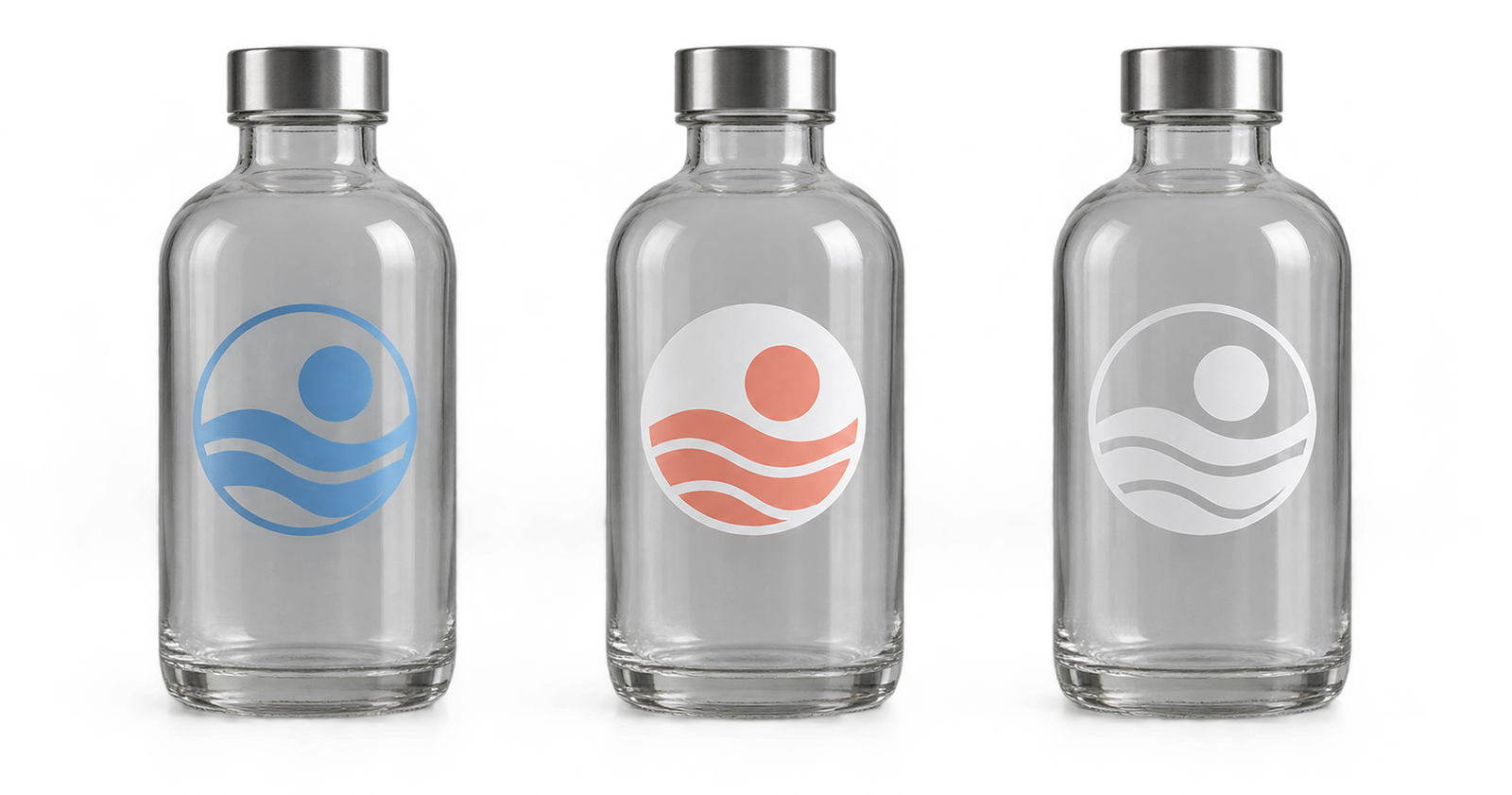
Clear stickers can produce two very different results depending on whether white ink is printed beneath or within the design. Without white ink, printed colors remain partly transparent and interact with the surface below. With white ink, selected colors become more opaque, white elements can be physically printed, and the artwork usually remains easier to read on dark or transparent surfaces.
The right option depends on the intended look, the color of the application surface and which parts of the design should remain transparent.
Key Takeaways
- Choose no white ink when you want a transparent, stained-glass-like effect and will apply the sticker to a light surface.
- Use a white underbase when important colors or small text need stronger opacity.
- Use white ink as a visible design color when the finished sticker must contain white text, lines or shapes.
- Judge the artwork on its real application surface—not only against the white background of a computer screen.
What Does White Ink Do on a Clear Sticker?
Clear sticker material does not provide the opaque white background found in white sticker stock. Standard process colors are therefore influenced by whatever sits behind the sticker. A red logo may look bright on a white bottle but appear darker or less distinct on amber glass.
White ink can serve two separate purposes:
- White underbase: White is printed behind some or all colored artwork to make those areas more opaque.
- Visible white artwork: White ink is printed as part of the design—for example, white lettering on a clear window sticker.
Commercial print workflows commonly treat custom inks such as white as separate spot colors or separations. Adobe explains that spot colors use their own separation, while Roland’s guidance for printing white on clear media notes that print mode, ink type and viewing direction all affect production setup.
Clear Stickers Without White Ink
Without a white layer, the surface underneath becomes part of the visual result. This option works best when transparency is intentional rather than merely tolerated.
Advantages
- Produces the most transparent appearance
- Creates a subtle, printed-directly-on-the-surface effect
- Works well with dark, saturated artwork on glass or light backgrounds
- Keeps unprinted areas completely clear
Limitations
- Light colors may look faint
- White elements in a digital file may become transparent unless white ink is specified
- The same artwork can look different on different surface colors
- Fine text may lose contrast on dark, reflective or visually busy backgrounds
Choose this option for simple black graphics, dark one-color logos, decorative window artwork, or designs where translucency is part of the concept.
Clear Stickers With a White Underbase
A white underbase sits behind selected colored areas. It reduces the influence of the application surface and helps colors remain more visible.
Advantages
- Improves opacity and contrast
- Helps logos remain readable on dark or transparent surfaces
- Supports brighter-looking colors than transparent color alone
- Allows the designer to combine opaque and transparent areas in one sticker
Limitations
- Reduces transparency wherever the underbase is printed
- Requires clear artwork instructions or a proof that shows white-ink placement
- A full white underbase can make the sticker resemble an opaque label rather than a transparent one
Selective white ink is often the most flexible approach. A logo can receive a white backing while surrounding areas remain transparent, preserving the clean look that makes a clear sticker useful.
White Ink as a Visible Design Color
If the design contains white lettering, icons or borders, those objects need to be identified as printable white ink. In a normal screen image, white may simply mean “no color,” but on a transparent material that area can remain clear.
Adobe recommends working closely with the print provider when preparing spot-color separations. The exact layer name, swatch name and file format can vary by production workflow. For YourWaySticker orders, customers should upload the best available source file and describe which parts must print white; the digital proof should then confirm those areas before production.
Which Option Should You Choose?
| Design or application | Recommended setup | Why |
|---|---|---|
| Dark logo on a clear jar | No white ink may work | Dark artwork can retain contrast on a light or transparent background |
| Pale logo on dark glass | White underbase | The backing helps prevent the surface from overwhelming the colors |
| White lettering on a window | Visible white ink | White must be printed as an actual ink |
| Minimal transparent decoration | No white ink | Preserves the greatest amount of transparency |
| Product label with bold color and clear areas | Selective white underbase | Supports opacity only where it is needed |
| Artwork used on several surface colors | White underbase or white sticker stock | Produces a more predictable appearance |
If the application surface is unknown, an opaque sticker is usually easier to proof consistently. Read our guide to choosing a custom sticker material before deciding.
How to Prepare Artwork for White Ink
1. Identify the final surface
Record whether the sticker will be applied to clear glass, colored glass, plastic, metal or another material. Include the surface color.
2. Separate clear, color and white areas
Make it obvious which objects should stay transparent, which should print in color, and which require a white underbase or visible white ink.
3. Keep important details readable
Very thin lines and very small text can be difficult to reproduce or see once the sticker is applied. Keep essential information clear and high-contrast.
4. Supply the best source artwork available
Vector artwork is helpful for logos and type, but the printer’s accepted formats and white-ink workflow should guide the final file preparation. Do not flatten or discard useful layers unless requested.
5. Review the proof for ink behavior—not just spelling
Confirm the cut line, transparent zones, white-ink zones, viewing direction and intended application surface. A white-screen preview alone does not show how transparent ink will behave on dark packaging.
Common Questions
Will white areas in my artwork automatically print white?
Not necessarily. On clear material, white areas may be interpreted as unprinted transparent areas unless white ink is specifically included in the production setup. Confirm the result in the proof.
Does white ink make the whole sticker opaque?
Only where it is printed. Selective white ink can support the logo or text while leaving the rest of the sticker transparent.
Is white ink always better for clear stickers?
No. It is useful when opacity and contrast matter, but it can work against designs that depend on translucency. The design goal and application surface should determine the choice.
Can a screen preview show the exact final result?
It can show placement, but it cannot perfectly reproduce the interaction among ink, transparent film, lighting and the real surface. A physical sample is the best reference for color-critical work.
Order Clear Stickers With the Right Ink Setup
Choose your size and shape, upload your artwork, and explain where you want white ink. Review the proof carefully before printing begins.
You can also browse all sticker products if an opaque material would suit your design better.
