How to Prepare Artwork for Clear Sticker Printing

Clear stickers can look clean and almost printed directly onto a surface—but only when the artwork accounts for transparency. A file that works perfectly on white paper may lose contrast on clear material, especially when it is placed on glass, dark packaging, or a colored product.
This guide explains how to prepare a print-ready clear sticker file, decide where white ink is needed, add bleed and safe margins, and export the artwork without accidentally flattening away important information.
Key Takeaways
- Keep the background transparent unless you intentionally want a printed background.
- Plan white ink before ordering because ordinary CMYK inks are not fully opaque on clear material.
- Use vector artwork when possible or raster artwork at about 300 PPI at final print size.
- Extend full-bleed artwork beyond the cut line and keep important elements safely inside it.
- Export a high-quality PDF when possible and clearly label any white-ink layer.
1. Start With the Final Sticker Size and Cut Shape
Create the document at the sticker's intended finished size. Scaling artwork after approval can change line weights, text size, image resolution, and the relationship between the design and cut line.
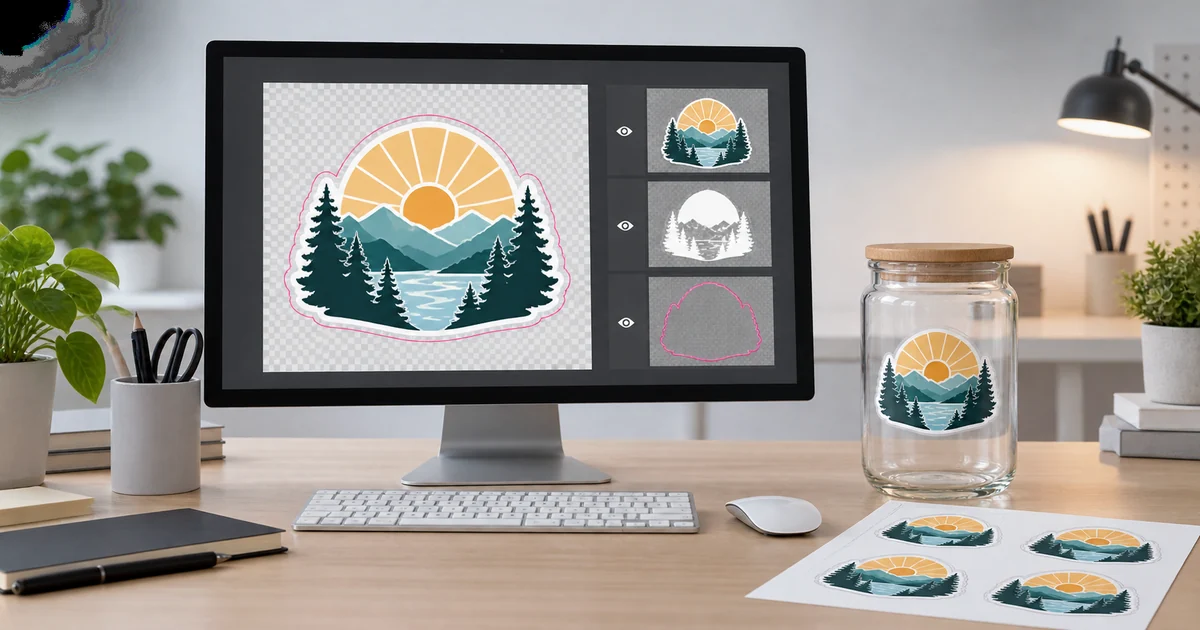
For a custom-shaped sticker, place the cut path on a separate top layer and name it clearly, such as Cut Line. Use one closed vector path without duplicate points or stray shapes. The cut line should describe the final outside edge, not every small interior detail.
Keep small text, logos, QR codes, and other essential elements away from the cut edge. A practical safe margin reduces the chance that normal cutting tolerance will make the design look off-center or trim important details.
2. Preserve the Transparent Background
A transparent checkerboard in design software represents an area with no printed ink. It does not represent white ink. If you add a white rectangle behind the design, that rectangle may print as white or may be interpreted as part of the artwork.
Delete any background you do not want printed, then inspect the file over several temporary background colors. Test it over white, black, gray, and a color similar to the intended application surface. This simple preview reveals weak contrast before production.
PNG can preserve transparency for raster artwork, while PDF, AI, and EPS can retain vector paths. JPEG cannot store transparency, so it is usually a poor choice for clear sticker artwork with open areas.
For a fuller explanation of how clear material changes color, see clear stickers with white ink versus without white ink.
3. Decide Exactly Where White Ink Should Print
White ink is an underbase, a visible design color, or both. It can make selected colors appear more solid and prevent the application surface from showing through those areas.
Use white ink behind selected colors when:
- A logo must remain recognizable on dark or colored surfaces.
- Light colors need stronger contrast.
- Small text must stay readable.
- A product label needs predictable brand colors.
Leave white ink out when:
- You want a stained-glass or translucent effect.
- The surface color should interact with the design.
- The sticker will be applied only to white or very light backgrounds.
If your workflow supports spot colors, create a separate layer named White Ink and use a clearly named spot swatch. Keep this layer aligned with the color artwork. If you cannot create a spot-color layer, include a marked preview that identifies which areas should receive white ink.
Avoid describing white ink only in an email while sending an ambiguous file. The most reliable artwork package makes the intent visible inside the file and in a reference preview.
4. Use Vector Artwork or Sufficient Raster Resolution
Vector artwork is preferred for logos, lettering, icons, and cut paths because it can scale without pixelation. Keep text editable during design, then outline fonts in the final production copy if requested. Always retain a separate editable master file.
For photographs or painted artwork, prepare the image at the final print dimensions. Adobe recommends 300 PPI as a standard target for high-quality print; increasing the PPI setting without adding real pixel data does not restore lost detail (Adobe Photoshop resolution guidance).
Check raster artwork at 100% view. Look for soft edges, compression blocks, halos left by background removal, and thin details that may disappear at the final size.
5. Add Bleed Without Expanding the Cut Line
If color or imagery should reach the sticker edge, extend that artwork past the cut line. Bleed provides a margin for normal trimming variation. Adobe defines bleed as artwork extending beyond the trim boundary so ink can still reach the edge after cutting (Adobe Illustrator bleed guidance).
Do not enlarge the cut line to create bleed. Instead:
- Keep the cut path at the final finished size.
- Extend background colors or images outside the cut path.
- Keep essential content inside the safe area.
- Ask the printer for its preferred bleed and safe-margin specifications.
Transparent areas do not need artificial bleed when nothing is intended to print there.
6. Check Thin Lines, Small Text, and Reversed Details
Very thin strokes and tiny gaps may close up, become uneven, or disappear after printing and cutting. White ink alignment can also make extremely small reversed details less forgiving.
Review the artwork at actual print size, not only while zoomed in. If a line is important to the design, make it visually substantial enough to survive production. Simplify closely spaced outlines and avoid using hairlines as decorative borders near the cut edge.
For QR codes or barcodes, test the final-size code from a realistic distance and on a background similar to the intended surface. Clear material and reflections can affect scanning, so a solid white area behind the code is usually safer than a fully transparent treatment.
7. Manage Color With the Application Surface in Mind
Screens emit light; printed stickers reflect it. Color will not match the monitor exactly, and transparent material adds another variable: the surface beneath the sticker becomes part of the visual result.
Use the printer's requested color mode and profile. If no profile is provided, preserve the original editable artwork and avoid repeated color conversions. Highly saturated screen colors may print less vividly, while pale colors may appear especially weak without white ink.
Before approving production, evaluate a mockup on the real application color. If the sticker may be used on several surfaces, design for the most challenging one or choose white ink behind critical brand elements.
You can also compare clear stickers and white vinyl stickers when consistent opacity matters more than a transparent appearance.
8. Export a Production File and a Reference Preview
PDF is often a strong delivery format because it can preserve vector paths, embedded fonts, layers, transparency, and bleed. Adobe recommends confirming the print provider's preferred PDF settings; PDF/X-4 can preserve live transparency in supported workflows (Adobe PDF creation guidance).
Before uploading, verify that:
- The document uses the final physical dimensions.
- Transparent areas remain transparent.
- Fonts are embedded or outlined as requested.
- Linked images are embedded or packaged.
- The cut path is a closed vector on its own layer.
- The white-ink layer is clearly named and aligned.
- Bleed is included where artwork reaches the edge.
- No hidden draft elements, guides, or duplicate cut lines remain.
Export a second JPG or PNG preview that shows the intended appearance. A flattened preview is useful for communication even when it is not the production file.
Clear Sticker Artwork Checklist
- Final size confirmed
- Cut shape confirmed
- Transparent background preserved
- White-ink areas identified
- Raster artwork approximately 300 PPI at final size
- Full-bleed artwork extended beyond the cut line
- Important details inside the safe area
- Thin lines and small text reviewed at actual size
- Fonts outlined or embedded as required
- PDF and reference preview exported
Frequently Asked Questions
Can I upload a PNG for clear sticker printing?
Yes, if it has a transparent background and enough resolution at the final size. A vector PDF is usually better for logos, text, cut paths, and precisely defined white-ink areas.
Does transparent artwork automatically create white ink?
No. Transparency means no ink. White ink must be deliberately specified as a printed layer or approved production instruction.
Should I convert every file to CMYK?
Follow the printer's requested workflow. An uncontrolled conversion can shift colors. Keep the original editable file and use the color profile or export preset supplied by the printer whenever possible.
How can I preview a clear sticker before ordering?
Place the artwork over mock backgrounds that match the intended surface. Review at least one dark, one light, and one colored background, with the white-ink layer simulated separately.
Ready to Print Your Clear Sticker Design?
Upload your prepared artwork, then choose the size and quantity for your project.
Not sure which option fits your application? Browse the full YourWaySticker shop or review our guide to choosing custom sticker material.
